Nieuwe pagina aangemaakt met '[[{{NAMESPACE}}:WebPlanboard Handleiding|Top]]<br> [[{{NAMESPACE}}:WebPlanboard_booking_form_select_employee|Previous]] ==Consumer selection== In het kader Consu...' |
|||
| (39 tussenliggende versies door dezelfde gebruiker niet weergegeven) | |||
| Regel 1: | Regel 1: | ||
[[{{NAMESPACE}}:WebPlanboard | [[{{NAMESPACE}}:WebPlanboard Manual|Top]]<br> | ||
[[{{NAMESPACE}}:WebPlanboard_booking_form_select_employee|Previous]] | [[{{NAMESPACE}}:WebPlanboard_booking_form_select_employee|Previous]] | ||
| Regel 5: | Regel 5: | ||
==Consumer selection== | ==Consumer selection== | ||
The Consumer frame contains fields (see figure below) for you to enter information concerning consumers and consumer types and once submitted you can also view this information.<br> | |||
A consumer type is used to describe a list of consumers with a similar function or task.<br> | |||
When you enter a consumer type you let the WebPlanboard choose a consumer from the list that is still free at the required time. | |||
<p></p> | <p></p> | ||
[[Bestand: | [[Bestand:100WebPlanboardBookingformConsumers1.png|450px|none]] | ||
<p></p> | <p></p> | ||
=== | |||
===Consumer field=== | |||
You can only enter consumers that are on the list of consumers.<br> | |||
Type directly in the Consumers field to select a consumer or select the consumer from the list. | |||
<p></p> | <p></p> | ||
{{ | {{warning_en}}The WebPlanner administrator can limit the number of consumers you may select. | ||
:If you enter more consumers or consumer types than this limit you will get a message that your booking cannot be processed. | |||
==== | ====Type directly in the Consumer field==== | ||
# | #Type the first letters of the consumer.<br> | ||
#: | #:A pop-up list appears from which you can make a selection.<br> | ||
#: | #:In the figure below you typed in 'BR' and two choices appear in the pop-up. | ||
#:<p></p> | #:<p></p> | ||
#:[[Bestand: | #:[[Bestand:100enWebPlanboardBookingformConsumers2.png|450px|none]] | ||
#:<p></p> | #:<p></p> | ||
# | #Select the consumers. | ||
# | #Click the Enter button. | ||
#: | #:Your selected consumers appear above the Consumers field.<br> | ||
#:In | #:In the figure below consumer BR is selected.<br> | ||
#:<p></p> | ::<p></p> | ||
::[[Bestand:100enWebPlanboardBookingformConsumers3.png|450px|none]] | |||
::<p></p> | |||
{{ | :{{Lightbulb}}Click the X to remove a selected consumer. | ||
<p></p> | |||
:{{Lightbulb}}The Consumers field entry is standard compulsory but your WebPlanner administrator might also configure it as optional. | |||
====Select a Consumer from the list==== | |||
#Click the icon on the right-hand side of Consumers.<br> | |||
#:The list of the consumers and consumer types you may select appears in a separate window.<br> | |||
#Select the consumer list at the top. | |||
#:The list of consumers appears below. | |||
#Check the boxes of consumers you wish to select. | |||
#:These are added at the top of the Consumer field.<br> | |||
#:Click the X at the bottom of the window to close it. | |||
:In the figure below consumer BR is selected. | |||
:<p></p> | |||
:[[Bestand:100enWebPlanboardBookingformConsumers4.png|1050px|none]] | |||
:<p></p> | |||
:{{lightbulb}}It is possible that a comsumer you require is not present in the list. | |||
::The list of selectable consumers is configured by your WebPlanner admistrator, see [[8.3nl_Admin:Webber_Medewerkerbeheer|Consumer management]]. | |||
====Select a Consumer type from the list==== | |||
#Click the icon on the right-hand side of the Consumers field.<br> | |||
#:A list of the consumers and consumers types you may select appears in a separate window.<br> | |||
#Select the 'Consumer Types' radio button at the top. | |||
#:The list of consumer types appears below. | |||
#Check the boxes of consumer types you wish to select. | |||
#:These are added at the top of the Consumers field.<br> | |||
#:In the figuur the employee type 'IB' is selected. | |||
:<p></p> | |||
:[[Bestand:100enWebPlanboardBookingformConsumers5.png|950px|none]] | |||
:<p></p> | |||
:{{lightbulb}}You can select both consumers and consumer types simultaneously. | |||
:For example: you want to book a specific consumer but you also want an alternative: | |||
:Enter a consumer type as wel. | |||
:The WebPlanner will first try to book your selected consumer and if that causes conflicts it will look for an alternative. | |||
<p></p> | |||
:{{lightbulb}}It is possible that a consumer type is not present in the list of types. | |||
:The list of the consumer types and which consumers belong to each type is configured by your WebPlanner admistrator, see [[8.3nl_Admin:Webber_Medewerkerbeheer|Consumer management]]. | |||
====Standard Consumer setting==== | |||
You can configure a consumer as the standard selection.<br> | |||
This consumer appears automatically in the Consumer field when you open a new booking form.<br> | |||
#In the consumer list click the box on the right-hand side of the consumer to configure it as the standard.<br> | |||
#:In the figure BR is the standard consumer. | |||
:<p></p> | |||
:[[Bestand:100enWebPlanboardBookingformConsumers6.png|950px|none]] | |||
:<p></p> | |||
{{lightbulb}}Click 'clear the standard' at the bottom of the list when you no longer need a standard. | |||
==='Number of Consumers' field=== | |||
Enter the number of consumers you need to book.<br> | |||
This number is necessary if you select more consumers than you actually require. | |||
<p></p> | |||
{{warning_en}}The WebPlanner administrator can limit the number of consumers you may have in the same booking.<br> | |||
:If you enter a higher number in the 'Number of Consumers' field then during the book, modify or copy submission the WebPlanner will show a message that the booking cannot be executed. | |||
==== | ====Number of required Consumers equals number selected==== | ||
In the figure below the codes of the consumers you selected are BR and GD and the number of consumers you need is 2.<br> | |||
This implies that the WebPlanner must book both persons. | |||
:<p></p> | |||
:[[Bestand:100enWebPlanboardBookingformConsumers7.png|450px|none]] | |||
:<p></p> | |||
====Number of required Consumers is less than number selected==== | |||
In de figure below the codes of the consumers you selected are BR and GD and the number of consumers you need is only 1.<br> | |||
This implies that the WebPlanner may choose between BR and GD.<br> | |||
De WebPlanner will first try to book BR and only if that leads to conflicts will it try to book GD. | |||
:<p></p> | |||
:[[Bestand:100enWebPlanboardBookingformConsumers8.png|450px|none]] | |||
:<p></p> | |||
====Select several Consumers and Consumer types==== | |||
When you selected several consumer types you can also indicate the number of consumers per type you wish to book.<br> | |||
In the figure below the consumer types IB and IG are entered and the 'Number of Consumers' field is '2 1'.<br> | |||
This implies you wish to book 2 consumers of type IB and 1 of type IG. | |||
:<p></p> | |||
:[[Bestand:100enWebPlanboardBookingformConsumers9a.png|950px|none]] | |||
:<p></p> | |||
{{lightbulb}} If for example you enter '3' rather than '2 1' then it is not certain the WebPlanner will choose 2 IBs and 1 IG, because it might also choose 3 IBs. | |||
=== | ==='Specify per Consumer' field=== | ||
This is a quicker way to let the WebPlanner know that you wish to book 1 consumer of each given type entered in the Consumers field.<br> | |||
Suppose you want to book 1 Assistant and 1 External.<br> | |||
# | In the figuur the consumer types IB and IG are entered. | ||
#: | #Enter 2 in the 'Number of Consumers' field.<br> | ||
#:This means that you want to book 2 consumers. | |||
:<p></p> | |||
#:<p></p> | :[[Bestand:100enWebPlanboardBookingformConsumers10.png|950px|none]] | ||
:<p></p> | |||
#Check the 'Specificy per Provider'. | |||
#:The WebPlanner changes the 'Number of Consumers' directly from '2' to '1 1' meaning select 1 IB type and 1 IG type (see figure below).<br> | |||
#:This saves you time in the case that you have entered many consumer types. | |||
:<p></p> | |||
:[[Bestand:100enWebPlanboardBookingformConsumers11.png|450px|none]] | |||
:<p></p> | |||
=== | ==='Maximum number of participants' field (register/unregister)=== | ||
:You might want WebViewer users to register for the activity of this booking.<br> | |||
:Enter the number of consumers that are allowed to participate in the activity. | |||
<p></p> | <p></p> | ||
{{ | :{{lightbulb}} The 'Maximum number of participants' applies to both employees and consumers. | ||
::Note that this field is only visible in the Employees frame since both employees and consumers may register for the same activity.<br> | |||
:In the figure below 15 employees or consumers may register.<br> | |||
In | :<p></p> | ||
:[[Bestand:100enWebPlanboardBookingformConsumers12.png|650px|none]] | |||
<p></p> | :<p></p> | ||
[[Bestand: | |||
<p></p> | |||
:{{lightbulb}} A user can tell whether registering for an activity is possible by placing the mouse cursor over the booking.<br> | |||
::The user sees that there are still places available because a baloon appears with the text 'Register me.<br> | |||
:If the user may unregister then a balloon appears with the text 'Unregister me'.<br> | |||
:In the figure below the option 'Register me' appears above the booking 'Consultation'.<br> | |||
:<p></p> | |||
:[[Bestand:100enWebPlanboardBookingformConsumers13.png|300px|none]] | |||
:<p></p> | |||
<p></p> | :{{lightbulb}} 'Register me' does not appear when the maximum number of participating persons is reached and the WebViewer won't allow additional. | ||
[[Bestand: | |||
<p></p> | <p></p> | ||
:{{lightbulb}} The WebPlanner administrator might also configure the WebPlanner to only allow registration but no unregistration. | |||
=== | ===Consumer fields read only=== | ||
Consumer fields might be configured as read only.<br> | |||
This depends on the [[{{NAMESPACE}}_Admin: Webber_Gebruikersgroep_Opties|Usergroup settings]].<br> | |||
In the figure below the booking form has no input list button on the right hand side of Consumers field. | |||
<p></p> | :<p></p> | ||
[[Bestand: | :[[Bestand:100enWebPlanboardBookingformConsumers14.png|650px|none]] | ||
:<p></p> | |||
{{lightbulb}} The read only option can be useful when a certain group of planners may only modify other fields such as Rooms. | |||
<p></p> | <p></p> | ||
[[{{NAMESPACE}}:WebPlanboard_booking_form_select_device_and_device_type|Next]] | |||
''Component of WebPlanboard'' | ''Component of WebPlanboard'' | ||
© 2012-2023 Bitbybit Information Systems | |||
All rights reserved. No part of this documentation shall be reproduced, stored in a retrieval system, or | |||
transmitted by any means, electronic, mechanical, photocopying, recording, or otherwise, without | |||
written permission from Bitbybit Information Systems. | |||
Bitbybit Information Systems, Perspective-DB and IRIS-Planning are registered trademarks of Bitbybit | |||
Information Systems. | |||
Huidige versie van 25 mei 2023 16:54
Consumer selection
The Consumer frame contains fields (see figure below) for you to enter information concerning consumers and consumer types and once submitted you can also view this information.
A consumer type is used to describe a list of consumers with a similar function or task.
When you enter a consumer type you let the WebPlanboard choose a consumer from the list that is still free at the required time.

Consumer field
You can only enter consumers that are on the list of consumers.
Type directly in the Consumers field to select a consumer or select the consumer from the list.
 Warning: The WebPlanner administrator can limit the number of consumers you may select.
- If you enter more consumers or consumer types than this limit you will get a message that your booking cannot be processed.
Type directly in the Consumer field
- Type the first letters of the consumer.
- A pop-up list appears from which you can make a selection.
- In the figure below you typed in 'BR' and two choices appear in the pop-up.

- A pop-up list appears from which you can make a selection.
- Select the consumers.
- Click the Enter button.
- Your selected consumers appear above the Consumers field.
- In the figure below consumer BR is selected.
- Your selected consumers appear above the Consumers field.

 Tip: Click the X to remove a selected consumer.

- Tip: The Consumers field entry is standard compulsory but your WebPlanner administrator might also configure it as optional.
Select a Consumer from the list
- Click the icon on the right-hand side of Consumers.
- The list of the consumers and consumer types you may select appears in a separate window.
- The list of the consumers and consumer types you may select appears in a separate window.
- Select the consumer list at the top.
- The list of consumers appears below.
- Check the boxes of consumers you wish to select.
- These are added at the top of the Consumer field.
- Click the X at the bottom of the window to close it.
- These are added at the top of the Consumer field.
- In the figure below consumer BR is selected.

- Tip: It is possible that a comsumer you require is not present in the list.
- The list of selectable consumers is configured by your WebPlanner admistrator, see Consumer management.

Select a Consumer type from the list
- Click the icon on the right-hand side of the Consumers field.
- A list of the consumers and consumers types you may select appears in a separate window.
- A list of the consumers and consumers types you may select appears in a separate window.
- Select the 'Consumer Types' radio button at the top.
- The list of consumer types appears below.
- Check the boxes of consumer types you wish to select.
- These are added at the top of the Consumers field.
- In the figuur the employee type 'IB' is selected.
- These are added at the top of the Consumers field.

- Tip: You can select both consumers and consumer types simultaneously.
- For example: you want to book a specific consumer but you also want an alternative:
- Enter a consumer type as wel.
- The WebPlanner will first try to book your selected consumer and if that causes conflicts it will look for an alternative.

- Tip: It is possible that a consumer type is not present in the list of types.
- The list of the consumer types and which consumers belong to each type is configured by your WebPlanner admistrator, see Consumer management.
Standard Consumer setting
You can configure a consumer as the standard selection.
This consumer appears automatically in the Consumer field when you open a new booking form.
- In the consumer list click the box on the right-hand side of the consumer to configure it as the standard.
- In the figure BR is the standard consumer.

Tip: Click 'clear the standard' at the bottom of the list when you no longer need a standard.
'Number of Consumers' field
Enter the number of consumers you need to book.
This number is necessary if you select more consumers than you actually require.
Warning: The WebPlanner administrator can limit the number of consumers you may have in the same booking.
- If you enter a higher number in the 'Number of Consumers' field then during the book, modify or copy submission the WebPlanner will show a message that the booking cannot be executed.
Number of required Consumers equals number selected
In the figure below the codes of the consumers you selected are BR and GD and the number of consumers you need is 2.
This implies that the WebPlanner must book both persons.

Number of required Consumers is less than number selected
In de figure below the codes of the consumers you selected are BR and GD and the number of consumers you need is only 1.
This implies that the WebPlanner may choose between BR and GD.
De WebPlanner will first try to book BR and only if that leads to conflicts will it try to book GD.

Select several Consumers and Consumer types
When you selected several consumer types you can also indicate the number of consumers per type you wish to book.
In the figure below the consumer types IB and IG are entered and the 'Number of Consumers' field is '2 1'.
This implies you wish to book 2 consumers of type IB and 1 of type IG.

Tip: If for example you enter '3' rather than '2 1' then it is not certain the WebPlanner will choose 2 IBs and 1 IG, because it might also choose 3 IBs.
'Specify per Consumer' field
This is a quicker way to let the WebPlanner know that you wish to book 1 consumer of each given type entered in the Consumers field.
Suppose you want to book 1 Assistant and 1 External.
In the figuur the consumer types IB and IG are entered.
- Enter 2 in the 'Number of Consumers' field.
- This means that you want to book 2 consumers.

- Check the 'Specificy per Provider'.
- The WebPlanner changes the 'Number of Consumers' directly from '2' to '1 1' meaning select 1 IB type and 1 IG type (see figure below).
- This saves you time in the case that you have entered many consumer types.
- The WebPlanner changes the 'Number of Consumers' directly from '2' to '1 1' meaning select 1 IB type and 1 IG type (see figure below).

'Maximum number of participants' field (register/unregister)
- You might want WebViewer users to register for the activity of this booking.
- Enter the number of consumers that are allowed to participate in the activity.
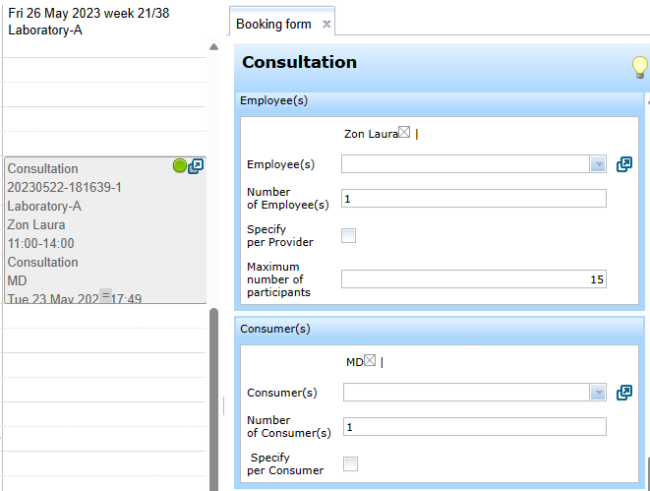
- Tip: The 'Maximum number of participants' applies to both employees and consumers.
- Note that this field is only visible in the Employees frame since both employees and consumers may register for the same activity.
- Note that this field is only visible in the Employees frame since both employees and consumers may register for the same activity.
- In the figure below 15 employees or consumers may register.

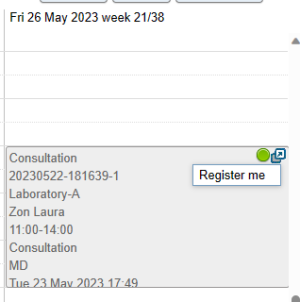
- Tip: A user can tell whether registering for an activity is possible by placing the mouse cursor over the booking.
- The user sees that there are still places available because a baloon appears with the text 'Register me.
- The user sees that there are still places available because a baloon appears with the text 'Register me.
- If the user may unregister then a balloon appears with the text 'Unregister me'.
- In the figure below the option 'Register me' appears above the booking 'Consultation'.
- Tip: 'Register me' does not appear when the maximum number of participating persons is reached and the WebViewer won't allow additional.

- Tip: The WebPlanner administrator might also configure the WebPlanner to only allow registration but no unregistration.
Consumer fields read only
Consumer fields might be configured as read only.
This depends on the Usergroup settings.
In the figure below the booking form has no input list button on the right hand side of Consumers field.

Tip: The read only option can be useful when a certain group of planners may only modify other fields such as Rooms.
Component of WebPlanboard
© 2012-2023 Bitbybit Information Systems All rights reserved. No part of this documentation shall be reproduced, stored in a retrieval system, or transmitted by any means, electronic, mechanical, photocopying, recording, or otherwise, without written permission from Bitbybit Information Systems. Bitbybit Information Systems, Perspective-DB and IRIS-Planning are registered trademarks of Bitbybit Information Systems.
