Geen bewerkingssamenvatting |
|||
| Regel 3: | Regel 3: | ||
[[{{NAMESPACE}}:WebView activity selection|Previous]] | [[{{NAMESPACE}}:WebView activity selection|Previous]] | ||
== | ==Room selection== | ||
=== | ===Steps=== | ||
# | #Click the tab "My selection" and then the Room tab. | ||
#: | #:A list of rooms appears below. | ||
#:<p></p> | #:<p></p> | ||
#:[[Bestand:83nlWebberRuimteselectie.PNG|200px|none]] | #:[[Bestand:83nlWebberRuimteselectie.PNG|200px|none]] | ||
#:<p></p> | #:<p></p> | ||
# | #Tick the boxes to select the rooms you want to see in the timetable. | ||
#:<p></p> | #:<p></p> | ||
#:[[Bestand:83nlWebberRuimteselectie2.PNG|250px|none]] | #:[[Bestand:83nlWebberRuimteselectie2.PNG|250px|none]] | ||
| Regel 17: | Regel 17: | ||
#:<p></p> | #:<p></p> | ||
=== | ===Select all=== | ||
Tick the checkbox at the top left to select all the activities at once. | |||
:[[Bestand:87nlWebberRuimteselectie3.png|250px|none]] | :[[Bestand:87nlWebberRuimteselectie3.png|250px|none]] | ||
=== | ===Deselect all=== | ||
Untick the checkbox at the top left to deslect all the rooms at once. | |||
:[[Bestand:87nlWebberRuimteselectie4.png|250px|none]] | :[[Bestand:87nlWebberRuimteselectie4.png|250px|none]] | ||
=== | ===Remove selected Rooms from the selection=== | ||
Click this button to remove an activity from the selection.<br> | |||
First tick the rooms you wish to remove and then click the "Remove selected Room from list" button.<br> | |||
For example in the figure the rooms X and Y are removed from the selection. | |||
:[[Bestand:87nlWebberRuimteselectie5.png|650px|none]] | :[[Bestand:87nlWebberRuimteselectie5.png|650px|none]] | ||
In | In the figure the rooms X and Y are no longer visible in the selection. | ||
:[[Bestand:87nlWebberRuimteselectie6.png|650px|none]] | :[[Bestand:87nlWebberRuimteselectie6.png|650px|none]] | ||
{{Lightbulb}} | {{Lightbulb}} If you removed a room by mistake you can recover it by using the "Expand selection: Room" button. | ||
=== | ===Quickly select multiple rooms=== | ||
#Place the mouse on the first activity you wish to tick. | |||
#Keep the left mouse button pressed. | |||
#Drag the mouse down to the last activity you wish to tick. | |||
#:You see the activitities you selected are ticked. | |||
#When you release the mouse button the activities remain ticked. | |||
===Expand selection=== | |||
Use this button to go to the "Expand selection" tab then tab "Room" where you can add rooms to the selection.<br> | |||
See explanation in [[{{NAMESPACE}}:Webber ruimteselectie uitbreiden|Ruimteselectie uitbreiden]]. | |||
:[[Bestand:83nlWebberRuimteselectie7.PNG|250px|none]] | :[[Bestand:83nlWebberRuimteselectie7.PNG|250px|none]] | ||
=== | ===Sorting buttons=== | ||
If the Rooms list is very long it makes it more difficult to find a particular room.<br> | |||
Labels | Labels such as Rooms and Room types function as sorting buttons that enable you to sort in alphabetical order.<br> | ||
In | In the figure the user has clicked the Room name label and the rooms are in the alphabetical order, from a to z.<br> | ||
:[[Bestand:83nlWebberRuimteselectie8.PNG|225px|none]] | :[[Bestand:83nlWebberRuimteselectie8.PNG|225px|none]] | ||
{{Lightbulb}} | {{Lightbulb}} Click the Rooms label once more in order to sort the rooms in reverse order, from z to a. | ||
:[[Bestand:83nlWebberRuimteselectie9.PNG|225px|none]] | :[[Bestand:83nlWebberRuimteselectie9.PNG|225px|none]] | ||
===Filter | ===Filter buttons=== | ||
If the list of rooms is very long even the sorting buttons might not help you to find a room.<br> | |||
Click the filter button at the top left in order to open a form in which you can search explicitly.<br> | |||
In | In the figure the user clicked the filter button and has entered a search request in the form: The column 'Rooms', with search condition 'contains' and value 'o', in order to find all activities containing the letter 'o'. | ||
<p></p> | <p></p> | ||
:[[Bestand:87nlWebberRuimteselectie10.png|1150px|none]] | :[[Bestand:87nlWebberRuimteselectie10.png|1150px|none]] | ||
<p></p> | <p></p> | ||
Click the 'Filter' button in the form for the system to execute the search request.<br> | |||
In | In the figure the system answers: 'X of Y items are displayed'. | ||
<p></p> | <p></p> | ||
:[[Bestand:87nlWebberRuimteselectie11.png|1150px|none]] | :[[Bestand:87nlWebberRuimteselectie11.png|1150px|none]] | ||
<p></p> | <p></p> | ||
Click the 'Clear' button in the form to begin a new search.<br> | |||
Click the 'Cancel' button in the form to undo a search.<br> | |||
{{Lightbulb}} | {{Lightbulb}} Besides search condition 'contains' you can also search with: 'is', 'starts with', 'ends with', 'does not contain', 'is not', 'does not start with', 'does not end with' and 'is empty'. | ||
{{Lightbulb}} | {{Lightbulb}} If the form is no longer open you can click the 'Clear filter' at the top left to undo the search request. | ||
[[{{NAMESPACE}}:Webber medewerkerselectie|Volgende]] | [[{{NAMESPACE}}:Webber medewerkerselectie|Volgende]] | ||
'' | ''Component of WebView'' | ||
Versie van 21 mrt 2022 19:55
Room selection
Steps
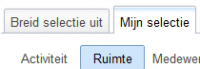
- Click the tab "My selection" and then the Room tab.
- A list of rooms appears below.
- Tick the boxes to select the rooms you want to see in the timetable.


Select all
Tick the checkbox at the top left to select all the activities at once.

Deselect all
Untick the checkbox at the top left to deslect all the rooms at once.

Remove selected Rooms from the selection
Click this button to remove an activity from the selection.
First tick the rooms you wish to remove and then click the "Remove selected Room from list" button.
For example in the figure the rooms X and Y are removed from the selection.

In the figure the rooms X and Y are no longer visible in the selection.

 Tip: If you removed a room by mistake you can recover it by using the "Expand selection: Room" button.
Quickly select multiple rooms
- Place the mouse on the first activity you wish to tick.
- Keep the left mouse button pressed.
- Drag the mouse down to the last activity you wish to tick.
- You see the activitities you selected are ticked.
- When you release the mouse button the activities remain ticked.
Expand selection
Use this button to go to the "Expand selection" tab then tab "Room" where you can add rooms to the selection.
See explanation in Ruimteselectie uitbreiden.

Sorting buttons
If the Rooms list is very long it makes it more difficult to find a particular room.
Labels such as Rooms and Room types function as sorting buttons that enable you to sort in alphabetical order.
In the figure the user has clicked the Room name label and the rooms are in the alphabetical order, from a to z.

Tip: Click the Rooms label once more in order to sort the rooms in reverse order, from z to a.

Filter buttons
If the list of rooms is very long even the sorting buttons might not help you to find a room.
Click the filter button at the top left in order to open a form in which you can search explicitly.
In the figure the user clicked the filter button and has entered a search request in the form: The column 'Rooms', with search condition 'contains' and value 'o', in order to find all activities containing the letter 'o'.

Click the 'Filter' button in the form for the system to execute the search request.
In the figure the system answers: 'X of Y items are displayed'.

Click the 'Clear' button in the form to begin a new search.
Click the 'Cancel' button in the form to undo a search.
Tip: Besides search condition 'contains' you can also search with: 'is', 'starts with', 'ends with', 'does not contain', 'is not', 'does not start with', 'does not end with' and 'is empty'.
Tip: If the form is no longer open you can click the 'Clear filter' at the top left to undo the search request.
Component of WebView
