Filter bookings
Introduction
You can configure the type of bookings you wish to see in the timetables.

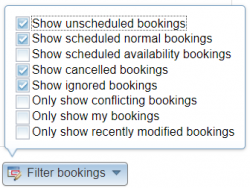
De 'Filter bookings' menu contains the following options:
- Show unscheduled bookings
- Show scheduled normal bookings
- Show scheduled availability bookings
- Show cancelled bookings
- Show ignored bookings
- Only show conflicting bookings
- Only show my bookings
- Only Show recently modified bookings
These are explained in more detail further on.
- Click the "Filter bookings" menu and a menu appears.
- Tick the boxes of items you wish to select.
- In the figure the user has selected unscheduled, scheduled normal, cancelled and ignored bookings.
- Open an interactive timetable.
- After opening the timetable you see the bookings filtered with the criteria you previously selected.
- In the example you can see a Bookinglist timetable.

- In the Status column you see 3 scheduled bookings, 1 unscheduled booking, 1 cancelled booking and 1 ignored booking.
- In the (filter) Options column you see 1 green circle (one scheduled booking without conflict), 2 red circles (scheduled bookings with conflicts), 1 black circle (cancelled booking) and 1 (white circle) ignored booking.


 Tip: Tick the Status and 'Show status icon' in the 'Select items' menu to display these items.
Tip: You can also use the alternative 'Filter bookings' menu in the open timetable.
- Click the "More options" at the top right of the timetable and you see the 'Filter bookings' menu.
- In the figure the user has ticked 'Show unscheduled bookings' and 'Show scheduled normal bookings' directly in the Booking list.

- The above possibilities also apply to the Calendar and Shifts timetables.
Show unscheduled bookings
- These are potential bookings that are registered in the system but are not yet scheduled.
- An unscheduled booking plays no role in the timetable but can displayed alongside other types of bookings.
- An unscheduled booking has an orange circular orange.
- All possible occurances of an unscheduled booking with freedom get displayed, see some examples in the tip below.
Show scheduled normal bookings
- These are standaard bookings.
A Normal scheduled booking has a green circular icon:

Show scheduled availability bookings
- A scheduled availability booking is intended to introduce constraints in the timetable.
- For example a scheduled availability booking of room Laboratory-A from between 09:00 and 13:00 from 14-04-2022 to 16-04-2022 implies that this room should not be scheduled in the given time and day intervals.
- An availability booking has a purple circular:

Show cancelled bookings
- A cancelled booking plays no role in the timetable but can be displayed alongside other types of bookings.
- A cancelled booking has a black circular icon:

Show ignored bookings
- An ignored booking no longer plays a role in the timetable but can be displayed alongside other types of bookings.
- An ignored booking has a grey circular icon.
Only show conflicting bookings
- Hiermee kunt u uitsluitend boekingen geroosterd met conflict zichtbaar maken in het roosteroverzicht.
- In de figuur onderaan ziet u dat de checkbox "Toon alleen conflicterende boekingen" in "Filter boekingen" van "Meer opties" in het Kalenderrooster aangevinkt is.
- Conflicterende boekingen hebben een icoon in de vorm van een rode cirkel.
- In het voorbeeld worden twee conflicterende boekingen (Bezoek 2 en Bezoek 3) getoond.

- Tip: Met de optie "Toon geroosterde normale boekingen" worden alle (ook met conflict) geroosterde boekingen getoond.
Show my bookings
- Bij het maken van een boeking houdt het systeem de boeker bij.
- Indien aangevinkt, worden alleen de door u gemaakte boekingen zichtbaar gemaakt.
Tip: U negeert een boeking zodat deze tijdelijk geen rol in het rooster meer speelt.
Tip: Niet-geroosterde boeking met vrijheid in weken en/of dagen:
- Een boeking met 3 kalenderweken en Aantal weken: 2 zal een gebeurtenis tonen in alle 3 weken.
- Een boeking met 2 dagen en Aantal dagen: 1 zal een gebeurtenis tonen in beiden dagen.
- Een boeking met 2 beginuren en aantal uren 1: Alleen 1 gebeurtenis wordt getoond. Deze gebeurtenis start op de vroegste van de 2 uren.
 Let op: Het kan zijn dat u geen "Filter boekingen"-knop ziet of enkele filtercriteria ontbreken.
Dit is afhankelijk van de configuratie bij uw organisatie.
Tip: The slight difference between a cancelled and ignored booking is that a cancelled booking is usually not to be rescheduled but an ignored booking indicates it might be rescheduled at a later date.
Let op: Het kan zijn dat u geen "Filter boekingen"-knop ziet of enkele filtercriteria ontbreken.
Dit is afhankelijk van de configuratie bij uw organisatie.
Tip: The slight difference between a cancelled and ignored booking is that a cancelled booking is usually not to be rescheduled but an ignored booking indicates it might be rescheduled at a later date.
Only show recently modified bookings
- Tick this item to see only recently modified bookings in the timetable.
- A recently modified booking has a yellow triangular icon.
- In the figure only recently modified bookings are displayed.
Tip: In order to see the icon tick the 'Show modified booking icon' box in the 'Select items' menu.
Tip: You can also choose which types of recently modified bookings to view, for example, in the figure below the types are unscheduled (1 booking), 'scheduled normal' (1 booking) and 'scheduled availability' (no bookings).

Component of WebView
