Top
Timetable Settings
Previous
Filter bookings
Introduction
You can configure the type of bookings you wish to see in the timetables.

De 'Filter bookings' menu contains the following options:
- Show unscheduled bookings
- Show scheduled normal bookings
- Show scheduled availability bookings
- Show cancelled bookings
- Show ignored bookings
- Only show conflicting bookings
- Only show my bookings
- Only Show recently modified bookings
These are explained in more detail further on.
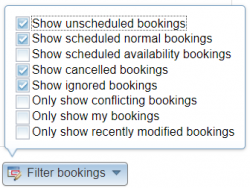
- Click the "Filter bookings" menu and a menu appears.
- Tick the boxes of items you wish to select.
- In the figure the user has selected unscheduled, scheduled normal, cancelled and ignored bookings.
- Open an interactive timetable.
- After opening the timetable you see the bookings filtered with the criteria you previously selected.
- In the example you can see a Bookinglist timetable.

- In the Status column you see 3 scheduled bookings, 1 unscheduled booking, 1 cancelled booking and 1 ignored booking.
- In the (filter) Options column you see 1 green circle (one scheduled booking without conflict), 2 red circles (scheduled bookings with conflicts), 1 black circle (cancelled booking) and 1 (white circle) ignored booking.


 Tip: Tick the Status and 'Show status icon' in the 'Select items' menu to display these items.
Tip: You can also use the alternative 'Filter bookings' menu in the open timetable.
- Click the "More options" at the top right of the timetable and you see the 'Filter bookings' menu.
- In the figure the user has ticked 'Show unscheduled bookings' and 'Show scheduled normal bookings' directly in the Booking list.

- The above possibilities also apply to the Calendar and Shifts timetables.
Show unscheduled bookings
- These are potential bookings that are registered in the system but are not yet scheduled.
- An unscheduled booking plays no role in the timetable but can displayed alongside other types of bookings.
- An unscheduled booking has an orange circular orange.
- All possible occurances of an unscheduled booking with freedom get displayed, see some examples in the tip below.

Show scheduled normal bookings
- These are standaard bookings.
A Normal scheduled booking has a green circular icon:

Show scheduled availability bookings
- A scheduled availability booking is intended to introduce constraints in the timetable.
- For example a scheduled availability booking of room Laboratory-A from between 09:00 and 13:00 from 14-04-2022 to 16-04-2022 implies that this room should not be scheduled in the given time and day intervals.
- An availability booking has a purple circular:

Show cancelled bookings
- A cancelled booking plays no role in the timetable but can be displayed alongside other types of bookings.
- A cancelled booking has a black circular icon:

Show ignored bookings
- An ignored booking no longer plays a role in the timetable but can be displayed alongside other types of bookings.
- An ignored booking has a grey circular icon:

Only show conflicting bookings
- Tick this to generate a timetable that only displays bookings with conflicts.
- In the figure you see that checkbox 'Only show conflicting bookings' in 'Filter bookings' of 'More options' in Calendar timetable is ticked.
- Conflicting bookings appear with an icon in the shape of a red circle.
- The example shows two conflicting bookings.


- Tip: The option 'Show normal scheduled bookings' displays all scheduled bookings including conflicting ones.
Only show my bookings
- The system registers which person made a specific booking.
- When 'Only show my bookings' is ticked, only the bookings you made are visible.
Tip: You set a booking to 'Ignored' if you don't want it to play an active role in the timetable.
Tip: Not ignored booking series with freedom in week or days:
- A booking series of 3 calendar weeks and number of weeks: 2 shows an occurance in all 3 weeks.
- A booking series of 2 days and number of days: 1 shows an occurance in both days.
- A booking of 2 start hours and number of hours 1: only 1 occurance is shown. This occurance starts on the earliest of the 2 occurances.
 Warning: You might not see a 'Filter bookings' button or some of the filter options might be missing.
This depends on the configuration set up for your organisation.
Warning: You might not see a 'Filter bookings' button or some of the filter options might be missing.
This depends on the configuration set up for your organisation.
Tip: The slight difference between a cancelled and ignored booking is that a cancelled booking is usually not to be rescheduled but an ignored booking indicates it might be rescheduled at a later date.
Only show recently modified bookings
- Tick this item to see only recently modified bookings in the timetable.
- A recently modified booking has a yellow triangular icon.
- In the figure only recently modified bookings are displayed.
Tip: In order to see the icon tick the 'Show modified booking icon' box in the 'Select items' menu.
Tip: You can also choose which types of recently modified bookings to view, for example, in the figure below the types are unscheduled (1 booking), 'scheduled normal' (1 booking) and 'scheduled availability' (no bookings).

Next
Timetable Formats: Calendar, Shift and Bookinglist
Component of WebView
