Uit Bitbybit Information Systems
Nieuwe pagina aangemaakt met 'Category:Expand selection [[{{NAMESPACE}}:WebView Manual|Top]]<br> [[{{NAMESPACE}}:WebView expand resource selection|Expand selection]]<br> {{NAMESPACE}}:WebV...' |
Geen bewerkingssamenvatting |
||
| (7 tussenliggende versies door dezelfde gebruiker niet weergegeven) | |||
| Regel 1: | Regel 1: | ||
[[Category: | [[Category:Timetable resource selection]] | ||
[[{{NAMESPACE}}:WebView Manual| | [[{{NAMESPACE}}:WebView Manual|WebView User Manual]]<br> | ||
[[{{NAMESPACE}}:WebView expand resource selection|Expand selection]]<br> | [[{{NAMESPACE}}:WebView expand resource selection|Timetable Expand selection]]<br> | ||
[[{{NAMESPACE}}:WebView expand consumer selection|Previous]] | [[{{NAMESPACE}}:WebView expand consumer selection|Previous]] | ||
| Regel 9: | Regel 9: | ||
#Click the 'Device' subtab. | #Click the 'Device' subtab. | ||
#:<p></p> | #:<p></p> | ||
#:[[Bestand: | #:[[Bestand:100enWebViewExpandDeviceSelection1.png|300px|none]] | ||
#:<p></p> | #:<p></p> | ||
#: | #:The folder default appears. | ||
#Click folder default to see the devices appear on the right. | |||
#Click | |||
#: <p></p> | #: <p></p> | ||
#:[[Bestand: | #:[[Bestand:100enWebViewExpandDeviceSelection2.png|1000px|none]] | ||
#: <p></p> | #: <p></p> | ||
#:In the figure | #:In the figure default was clicked and the devices BMR-1, BMR-2 etc appear on the right. | ||
#:<p></p> | #:<p></p> | ||
#Tick the boxes of the device you wish to add to the selection. | #Tick the boxes of the device you wish to add to the selection. | ||
#:In de figure the devices | #:In de figure the devices BMR-2 and COMP-1 are ticked. | ||
#:<p></p> | #:<p></p> | ||
#:[[Bestand: | #:[[Bestand:100enWebViewExpandDeviceSelection3.png|600px|none]] | ||
#:<p></p> | #:<p></p> | ||
#:{{Lightbulb}} Tick the box at the top left (next to Device) in order to tick all the devices of the device type. | #:{{Lightbulb}} Tick the box at the top left (next to Device) in order to tick all the devices of the device type. | ||
#Click the 'Save to basket' button. | #Click the 'Save to basket' button. | ||
#:<p></p> | #:<p></p> | ||
#:[[Bestand: | #:[[Bestand:100enWebViewExpandDeviceSelection4.png|300px|none]] | ||
#:<p></p> | #:<p></p> | ||
#:The system springs to the 'My selection' tab, 'Device' subtab and the selected devices have been added. | #:The system springs to the 'My selection' tab, 'Device' subtab and the selected devices have been added. | ||
#:<p></p> | #:<p></p> | ||
#:[[Bestand: | #:[[Bestand:100enWebViewExpandDeviceSelection5.png|950px|none]] | ||
#:<p></p> | #:<p></p> | ||
#:See also: [[{{NAMESPACE}}:WebView device selection|Device selection]]. | #:See also: [[{{NAMESPACE}}:WebView device selection|Device selection]]. | ||
| Regel 46: | Regel 40: | ||
::The devices appear on the right (if found). | ::The devices appear on the right (if found). | ||
:<p></p> | :<p></p> | ||
:[[Bestand: | :[[Bestand:100enWebViewExpandDeviceSelection6.png|1000px|none]] | ||
:<p></p> | :<p></p> | ||
:In the figure the search string is | :In the figure the search string is proj and the device containing this string appears in the table titled 'search results: proj', on the right. | ||
:{{Lightbulb}} If you click the Search button with an empty search field then you will get all devices | :{{Lightbulb}} If you click the Search button with an empty search field then you will get all devices. | ||
===Create a Device=== | ===Create a Device=== | ||
:Should you miss a device you can click the 'Create Device' button.<br> | :Should you miss a device you can click the 'Create Device' button.<br> | ||
:<p></p> | :<p></p> | ||
:[[Bestand: | :[[Bestand:100enWebViewExpandDeviceSelection7.png|350px|none]] | ||
:<p></p> | :<p></p> | ||
:See also: [[8.3nl_Admin:Webber Activiteit toevoegen|Create Device]]. This button is only visible if you have administrator authorisation. | :See also: [[8.3nl_Admin:Webber Activiteit toevoegen|Create Device]]. This button is only visible if you have administrator authorisation. | ||
| Regel 61: | Regel 55: | ||
::So before attempting to create a new device first check whether it exists in the Device resources. | ::So before attempting to create a new device first check whether it exists in the Device resources. | ||
[[{{NAMESPACE}}:WebView expand group selection|Next]] | [[{{NAMESPACE}}:WebView expand group selection|Next]]<br> | ||
[[{{NAMESPACE}}:WebView_date_selection|Date selection]] | |||
Huidige versie van 28 nov 2022 16:11
WebView User Manual
Timetable Expand selection
Previous
Expand Device selection
Steps
- Click the 'Expand selection' tab.
- Click the 'Device' subtab.

- The folder default appears.
- Click folder default to see the devices appear on the right.

- In the figure default was clicked and the devices BMR-1, BMR-2 etc appear on the right.
- Tick the boxes of the device you wish to add to the selection.
- In de figure the devices BMR-2 and COMP-1 are ticked.

 Tip: Tick the box at the top left (next to Device) in order to tick all the devices of the device type.
- Click the 'Save to basket' button.
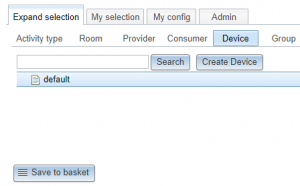
- The system springs to the 'My selection' tab, 'Device' subtab and the selected devices have been added.

- See also: Device selection.


Search
- If the list of device types is very long use the Search button to find devices.
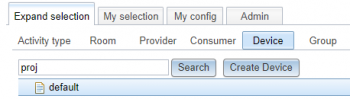
- Enter the text of you are looking for in the Search field.
- Click the Search button
- The devices appear on the right (if found).

- In the figure the search string is proj and the device containing this string appears in the table titled 'search results: proj', on the right.

- Tip: If you click the Search button with an empty search field then you will get all devices.
Create a Device
- Should you miss a device you can click the 'Create Device' button.
- See also: Create Device. This button is only visible if you have administrator authorisation.
- Tip: Only devices in the 'Resource group' list of the corresponding 'User group' are visible in 'Expand selection'.
- So before attempting to create a new device first check whether it exists in the Device resources.

