Geen bewerkingssamenvatting |
|||
| Regel 43: | Regel 43: | ||
:[[Bestand:87nlWebberOverzicht3b.png|550px|none]] | :[[Bestand:87nlWebberOverzicht3b.png|550px|none]] | ||
:<p></p> | :<p></p> | ||
===Register and unregister=== | ===Register and unregister=== | ||
Versie van 6 mei 2022 10:44
Calendar timetable
Preparation
Before opening the timetable determine what should be displayed.
- Select the the weeks/days, the items in the booking and the kind of booking.
- Select the 'My selection' tab and a resource sub tab.
- For example in the figure the sub tab Activities is selected.
- Tick the resources you wish to view, for example the activity Overleg.
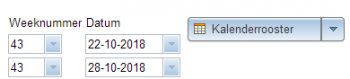
- Click the Calendar timetable button and the Calendar timetable opens.
- In the timetable you see the booked activities you selected on the selected days. In the figure you see the booking "Overleg over het lot van de Ring" is in location Rivendel on monday.
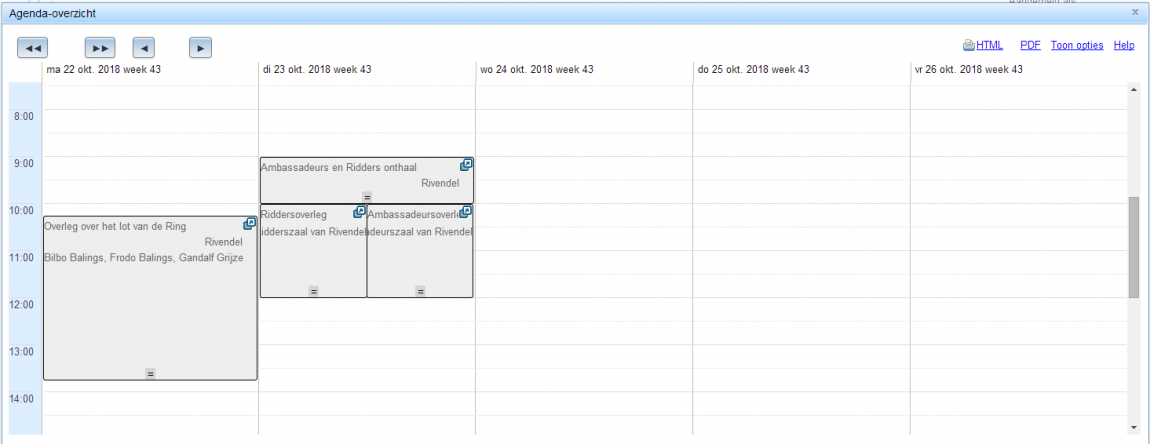
 Tip: If you can't see all the information of a booking, the place the mouse indicator on the booking. A pop then appears with the booking information.


Menu option: Apply grouping
You can tick the menu option 'apply groeping' to group the timetables in separate columns.
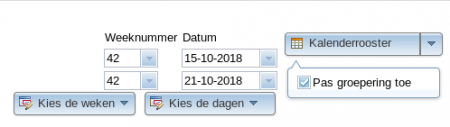
- In the timetable you see the booked activities you selected hebt on the selected days. In de figure you see the timetable of one resource per columnn.

Tip: You can also apply the grouping when the timetable is open. Click the Menu options on the top right and in the submenu 'Apply grouping' you see the 'Apply grouping' button.

Register and unregister
- You can register for certain bookings.
- Tip: To see whether you can register for a booking place the mouse cursor on the booking.
- If it is possible to register for the booking and there there still are vacant places, a balloon appears with the text 'Register me'.
- You can unregister by placing the mouse on the booking again. A balloon appears with the text 'unregister me'.
- The figure shows the 'register me' appears just above the booking 'Bezoek'.

850

Timetable of multiple kinds of resources
You can view multiple resource types in the Calendar timetable. In the figure the Activity Overleg en de Medewerker Frodo are selected.

Tip: You can do this by ticking the resources in the various subtab resource types of the My selection tab.
HTML printout
You can generate the timetable in an HTML format and then can print or save it.
- Click the "HTML" button to generate it.
- The browser opens a standard window where you can see and print the timetable.


Tip: Exaclty how this happens depends on the kind of browser you are using and its settings on your computer.
Tip: The HTML timetable shows all the items entered by you in the booking item selection.
If you require a shorter printout the try to reduce the number booking items.
Tip: For a higher print quality try the PDF format button.
PDF printout
You can view a timetable in PDF format and then print or save it.
- Click the PDF button to generate the timetable.
- The browser opens a window where you can view, print and save the timetable.


Tip: The way this is done depends on the kind of browser you are using and its settings on your computer.
Component of WebView
