Geen bewerkingssamenvatting |
Geen bewerkingssamenvatting |
||
| (57 tussenliggende versies door dezelfde gebruiker niet weergegeven) | |||
| Regel 1: | Regel 1: | ||
[[{{NAMESPACE}}:WebView Manual| | [[Category:Timetable date selection]] | ||
[[{{NAMESPACE}}:WebView Manual|WebView User Manual]]<br> | |||
[[{{NAMESPACE}}:WebView_expand_resource_selection|Timetable Expand (resource) selection]]<br> | |||
[[{{NAMESPACE}}:WebView expand group selection|Previous]] | [[{{NAMESPACE}}:WebView expand group selection|Previous]] | ||
==Date selection== | ==Timetable Date selection== | ||
===Introduction=== | ===Introduction=== | ||
After having selected the resources you now need to select the days or weeks you wish to view in the timetable.<br> | |||
You can do this in various ways: [[#Date|Date selection]], [[#Weeks|Week selection]] and [[#Work weeks|Work weeks]]. | |||
<p></p> | <p></p> | ||
[[Bestand: | [[Bestand:100enWebViewWeeksSelection0.png|350px|none]] | ||
<p></p> | <p></p> | ||
The next sections provide an explanation on these options.<br> | |||
{{lightbulb}} It is possible that an option is irrelevant for your organisation (Workweek for example) and therefore it might not be available in your Webber configuration. | |||
===Date=== | ===Date=== | ||
The figure shows the dates of the timetable are from 11/04/2022 til 17/04/2022.<br> | |||
<p></p> | <p></p> | ||
[[Bestand: | [[Bestand:100enWebViewDateSelection1.png|120px|none]] | ||
<p></p> | <p></p> | ||
# Click the menu on the right side of the second date (17/04/2022). A calendar appears showing the days of a month. | |||
* | # Click an arrow or a date | ||
* | #:Click the left arrow at the top to select the previous month. | ||
* | #:*Click the right arrow at the top to select the next month. | ||
* | #:*Click the middle arrow at the top to get a list of the months. | ||
* | #:*Click the year (2021) at the bottom left to select the previous year. | ||
#:*Click the year (2023) at the bottom right to select the next year. | |||
#:*Click any day to select its date. | |||
<p></p> | <p></p> | ||
[[Bestand: | [[Bestand:100enWebViewWeeksSelection2.png|200px|none]] | ||
<p></p> | <p></p> | ||
*Suppose you wish to view the timetable til 24/04/2022. | |||
* Click day 24. | |||
* The calendar dissapears and the second date is now 24/04/2022. | |||
<p></p> | <p></p> | ||
[[Bestand: | [[Bestand:100enWebViewDateSelection3.png|120px|none]] | ||
<p></p> | <p></p> | ||
You can also select which days of the week you will see in the timetable. For example Tuesday and Wednesday.<br> | |||
<p></p> | <p></p> | ||
{{Lightbulb}} | {{Lightbulb}}Click the date-field to type in the date directly. You must comply with format used (dayNumber/monthNumber/yearNumber).<br> | ||
{{Lightbulb}} | {{Lightbulb}}Selecting a start date that succeeds the end date will automatically switch the end date too, keeping the original interval.<br> | ||
{{Lightbulb}} | {{Lightbulb}}Selecting an end date that preceeds the start date will automatically switch the start date too, keeping the original interval.<br> | ||
===Weeks=== | ===Weeks=== | ||
The calendar week shown in the figure is number 14 (which starts on 04/04/2022 and ends on 10/04/2022). | |||
<p></p> | <p></p> | ||
[[Bestand: | [[Bestand:100enWebViewWeeksSelection4.png|200px|none]] | ||
<p></p> | <p></p> | ||
Suppose you wish view the timetable of week 15 too. | |||
#Click the lower Weeknumber menu on its right. | |||
#:A list of weeks appears. | |||
#Click the week (15). | |||
<p></p> | <p></p> | ||
[[Bestand: | [[Bestand:100enWebViewWeeksSelection5a.png|70px|none]] | ||
<p></p> | <p></p> | ||
The week list disappears and week 15 appears in the lower Weeknumber. Week 17 ends on 17/04/2022. | |||
<p></p> | <p></p> | ||
[[Bestand: | [[Bestand:100enWebViewWeeksSelection6.png|200px|none]] | ||
<p></p> | <p></p> | ||
{{Lightbulb}} | {{Lightbulb}}Click the Weeknumber field to type in the week number directly.<br> | ||
{{Lightbulb}} | {{Lightbulb}}Selecting a start week that succeeds the end week will automatically switch the end week too.<br> | ||
{{Lightbulb}} | {{Lightbulb}}Selecting an end week that preceeds the start week will automatically switch the start week too.<br> | ||
===Work weeks=== | ===Work weeks=== | ||
In | A work week belongs to a work calendar defined by your organisation, in which case the start of the year is shifted a number of weeks with regard to the calendar year.<br> | ||
For example work week 1 of a school year might start on 30/08/2021.<br> | |||
In the figure the work week is 21.1.31 which corresponds to calendar week 14 starting on 04/04/2021.<br> | |||
21.1.31 is short for work year 31, work period 1 and work week 31. | |||
<p></p> | <p></p> | ||
[[Bestand: | [[Bestand:100enWebViewWeeksSelection7.png|350px|none]] | ||
<p></p> | <p></p> | ||
Suppose you also want to see the timetable of the following week. | |||
# Click the lower Workweek menu on its right. | |||
#:A list of work weeks appears. | |||
#Click the work week (21.1.32). | |||
#:<p></p> | |||
#:[[Bestand:100enWebViewWeeksSelection8a.png|70px|none]] | |||
#:<p></p> | |||
#:The work week list disappears and the work week 21.1.32 appears in the lower Workweek. This is calendar week 15 starting on 17/04/2022. | |||
#:<p></p> | |||
#:[[Bestand:100enWebViewWeeksSelection9.png|350px|none]] | |||
#:<p></p> | |||
{{Lightbulb}}Click the Workweek field to type in the week number directly.<br> | |||
{{Lightbulb}}Selecting a start work week that succeeds the end work week will automatically switch the end work week too.<br> | |||
{{Lightbulb}}Selecting an end work week that preceeds the start work week will automatically switch the start work week too.<br> | |||
=== | ===Weeks menu=== | ||
When you only want to view certain weeks in a series you can filter out the unwanted weeks using the Weeks menu. | |||
Suppose you want to view the timetable of the weeks 14 to 18 (04-04-2022 t/m 08-05-2022) with the exception of the weeks 16 en 17. | |||
# Make sure the first and last week settings contains the series of the weeks you wish to view. | |||
#:<p></p> | |||
#:[[Bestand:100enWebViewWeeksSelection10.png|350px|none]] | |||
#:<p></p> | |||
# Click the Weeks menu. | |||
#:The list of all the weeks in the series appears. | |||
#:<p></p> | |||
#:[[Bestand:100enWebViewWeeksSelection11.png|150px|none]] | |||
#:<p></p> | |||
# Untick the boxes of unwanted weeks. | |||
#:<p></p> | |||
#:[[Bestand:100enWebViewWeeksSelection12.png|150px|none]] | |||
#:<p></p> | |||
# Click one of the viewing buttons (such as Calendar Timetable). | |||
#:You will only see the timetable of weeks 14, 15 and 18. | |||
<p></p> | <p></p> | ||
{{warning_en}} the Webber remembers your last filter selection, so don't forget to undo the filter if you want to view all the weeks in the series. | |||
<p></p> | <p></p> | ||
===Days menu=== | |||
When you only want to view certain days of the week you can filter out the unwanted days using the Days menu. | |||
Suppose you want to view the timetable of the weeks 14 to 18 (04-04-2022 t/m 08-05-2022) without Tuesdays and Wednesdays. | |||
<p></p> | <p></p> | ||
[[Bestand: | [[Bestand:100enWebViewWeeksSelection13.png|200px|none]] | ||
<p></p> | <p></p> | ||
#Click the Days menu. | |||
#:A list of the days of the week appears. | |||
#Untick the boxes of unwanted days. | |||
#:<p></p> | |||
#:[[Bestand:100enWebViewWeeksSelection14.png|150px|none]] | |||
#:<p></p> | |||
#Click one of the viewing buttons (such as Calendar Timetable). | |||
#:You will only see the timetable of weeks 14 to 18 without Thursdays and Wednesdays. | |||
<p></p> | <p></p> | ||
{{warning_en}} the Webber remembers your last filter selection, so don't forget to undo the filter if you want to view all days of the week. | |||
<p></p> | <p></p> | ||
=== | ===Dates menu=== | ||
When you want to quickly switch to the timetable of the current day or week you can use the Dates menu.<br> | |||
<p></p> | <p></p> | ||
[[Bestand: | [[Bestand:100enWebViewWeeksSelection15.png|100px|none]] | ||
<p></p> | <p></p> | ||
{{lightbulb}} | #Click the Dates menu button. | ||
#:3 options appear. | |||
#:*Select Today to view today's timetable. | |||
#:*Select 'Current week' to view this week's timetable. | |||
#:*Select Template to view the first week of the template timetable. | |||
#:<p></p> | |||
#:[[Bestand:100enWebViewWeeksSelection16.png|100px|none]] | |||
#:<p></p> | |||
#:The user has selected 'Current week'. The weeks selection has switched to week 15. | |||
#:<p></p> | |||
#:[[Bestand:100enWebViewWeeksSelection17.png|200px|none]] | |||
#:<p></p> | |||
===Go to Template=== | |||
Click the Template option in order to go the year and period designated for the template time-table. Here you can build a standard timetable that you can then copy to a current year and period. | |||
{{lightbulb}} The template start date is 4-9-2000 and the template option is only visible if your organisation uses the template timetable and you have planning permissions. | |||
<p></p> | <p></p> | ||
[[{{NAMESPACE}}: | [[{{NAMESPACE}}:WebView_select_booking_items|Next]] | ||
''Component of WebView'' | ''Component of WebView'' | ||
Huidige versie van 28 nov 2022 16:11
WebView User Manual
Timetable Expand (resource) selection
Previous
Timetable Date selection
Introduction
After having selected the resources you now need to select the days or weeks you wish to view in the timetable.
You can do this in various ways: Date selection, Week selection and Work weeks.

The next sections provide an explanation on these options.
 Tip: It is possible that an option is irrelevant for your organisation (Workweek for example) and therefore it might not be available in your Webber configuration.
Date
The figure shows the dates of the timetable are from 11/04/2022 til 17/04/2022.

- Click the menu on the right side of the second date (17/04/2022). A calendar appears showing the days of a month.
- Click an arrow or a date
- Click the left arrow at the top to select the previous month.
- Click the right arrow at the top to select the next month.
- Click the middle arrow at the top to get a list of the months.
- Click the year (2021) at the bottom left to select the previous year.
- Click the year (2023) at the bottom right to select the next year.
- Click any day to select its date.
- Click the left arrow at the top to select the previous month.

- Suppose you wish to view the timetable til 24/04/2022.
- Click day 24.
- The calendar dissapears and the second date is now 24/04/2022.

You can also select which days of the week you will see in the timetable. For example Tuesday and Wednesday.
Tip: Click the date-field to type in the date directly. You must comply with format used (dayNumber/monthNumber/yearNumber).
Tip: Selecting a start date that succeeds the end date will automatically switch the end date too, keeping the original interval.
Tip: Selecting an end date that preceeds the start date will automatically switch the start date too, keeping the original interval.
Weeks
The calendar week shown in the figure is number 14 (which starts on 04/04/2022 and ends on 10/04/2022).

Suppose you wish view the timetable of week 15 too.
- Click the lower Weeknumber menu on its right.
- A list of weeks appears.
- Click the week (15).

The week list disappears and week 15 appears in the lower Weeknumber. Week 17 ends on 17/04/2022.

Tip: Click the Weeknumber field to type in the week number directly.
Tip: Selecting a start week that succeeds the end week will automatically switch the end week too.
Tip: Selecting an end week that preceeds the start week will automatically switch the start week too.
Work weeks
A work week belongs to a work calendar defined by your organisation, in which case the start of the year is shifted a number of weeks with regard to the calendar year.
For example work week 1 of a school year might start on 30/08/2021.
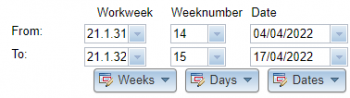
In the figure the work week is 21.1.31 which corresponds to calendar week 14 starting on 04/04/2021.
21.1.31 is short for work year 31, work period 1 and work week 31.

Suppose you also want to see the timetable of the following week.
- Click the lower Workweek menu on its right.
- A list of work weeks appears.
- Click the work week (21.1.32).
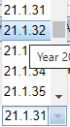
- The work week list disappears and the work week 21.1.32 appears in the lower Workweek. This is calendar week 15 starting on 17/04/2022.


Tip: Click the Workweek field to type in the week number directly.
Tip: Selecting a start work week that succeeds the end work week will automatically switch the end work week too.
Tip: Selecting an end work week that preceeds the start work week will automatically switch the start work week too.
When you only want to view certain weeks in a series you can filter out the unwanted weeks using the Weeks menu.
Suppose you want to view the timetable of the weeks 14 to 18 (04-04-2022 t/m 08-05-2022) with the exception of the weeks 16 en 17.
- Make sure the first and last week settings contains the series of the weeks you wish to view.
- Click the Weeks menu.
- The list of all the weeks in the series appears.

- Untick the boxes of unwanted weeks.
- Click one of the viewing buttons (such as Calendar Timetable).
- You will only see the timetable of weeks 14, 15 and 18.


 Warning: the Webber remembers your last filter selection, so don't forget to undo the filter if you want to view all the weeks in the series.
When you only want to view certain days of the week you can filter out the unwanted days using the Days menu.
Suppose you want to view the timetable of the weeks 14 to 18 (04-04-2022 t/m 08-05-2022) without Tuesdays and Wednesdays.

- Click the Days menu.
- A list of the days of the week appears.
- Untick the boxes of unwanted days.
- Click one of the viewing buttons (such as Calendar Timetable).
- You will only see the timetable of weeks 14 to 18 without Thursdays and Wednesdays.

Warning: the Webber remembers your last filter selection, so don't forget to undo the filter if you want to view all days of the week.
When you want to quickly switch to the timetable of the current day or week you can use the Dates menu.

- Click the Dates menu button.
- 3 options appear.
- Select Today to view today's timetable.
- Select 'Current week' to view this week's timetable.
- Select Template to view the first week of the template timetable.

- The user has selected 'Current week'. The weeks selection has switched to week 15.

- 3 options appear.


Go to Template
Click the Template option in order to go the year and period designated for the template time-table. Here you can build a standard timetable that you can then copy to a current year and period.
Tip: The template start date is 4-9-2000 and the template option is only visible if your organisation uses the template timetable and you have planning permissions.
Component of WebView
