Uit Bitbybit Information Systems
Expand Consumer selection
Steps
- Click the 'Expand selection' tab.
- Click the 'Consumer' subtab.
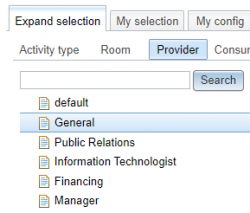
- A list of consumer types appears.
- An example of a consumer type is 'General'.
- Click a consumer type to see its corresponding consumers appear on the right.

- In the figure the consumer type 'Public Relations' was selected and its corresponding consumers ADJ, FKG and DS appear on the right.
- You can also select several consumer types at once.
- In the figure the consumer types 'Manager' and 'Public Relations' have been selected.

- Tick the boxes of the consumers you wish to add to the selection.
- In de figure the consumers FKG and DS are ticked.

 Tip: Tick the box at the top left (next to Consumer) in order to tick all the consumers of the consumer type.
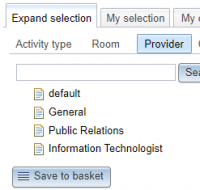
- Click the 'Save to basket' button.
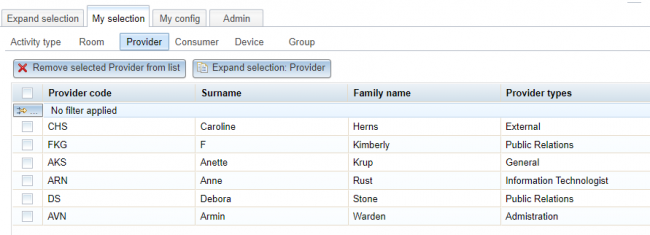
- The system springs to the 'My selection' tab, 'Provider' subtab and the selected consumers have been added.
- See also: Consumer selection.


Search
- If the list of consumer types is very long use the Search button to find consumers.
- Enter the text of you are looking for in the Search field.
- Click the Search button
- The consumers appear on the right (if found).

- In the figure the search string is Anette and the consumer containing this string appears in the table titled 'search results: Anette', on the right.

- Tip: If you click the Search button with an empty search field then you will get all consumers (of all consumer types)
Create a Consumer
- Should you miss a consumer you can click the 'Create Consumer' button.

- See also: Create Consumer. This button is only visible if you have administrator authorisation.
- Tip: Only consumers in the 'Resource group' list of the corresponding 'User group' are visible in 'Expand selection'.
- So before attempting to create a new consumer first check whether it exists in the Consumer resources.

