Uit Bitbybit Information Systems
WebView User Manual
Timetable Expand selection
Previous
Expand Group selection
Steps
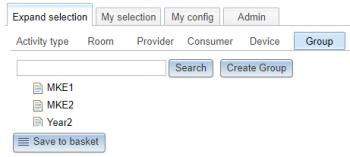
- Click the 'Expand selection' tab.
- Click the 'Group' subtab.

- A list of (top) groups appears (subgroups do not appear).
- An example of a group is MKE1.
- Click a group to see it appear together with its subgroups (if it has any) on the right.

- In the figure the group AMM2 was selected and AMM2 together with its subgroups AMM2.A and AMM2.B appear on the right.
- You can also select several groups at once.
- In the figure the groups AMM2 and MKE1 have been selected.

- Tick the boxes of the groups you wish to add to the selection.
- In de figure the groups AMM2.A and MKE1 are ticked.

 Tip: Tick the box at the top left (next to Group) in order to tick all the groups of selected (top) groups.
- Click the 'Save to basket' button.
- The system springs to the 'My selection' tab, Group subtab and the selected groups have been added.

- See also: Group selection.


Search
- If the list of top groups is very long use the Search button to find groups.
- Enter the text of you are looking for in the Search field.
- Click the Search button
- The groups appear on the right (if found).

- In the figure the search string is 'Trajectory' and groups containing this string appear in the table titled 'search results: Trajectory', on the right.

- Tip: If you click the Search button with an empty search field then you will get all groups and subgroups.
Create a Group
- Should you miss a group you can click the 'Create Group' button.

- See also: Create Group. This button is only visible if you have administrator authorisation.
- Tip: Only groups in the 'Resource group' list of the corresponding 'User group' are visible in 'Expand selection'.
- So before attempting to create a new group first check whether it exists in the Group resources.

