| (14 tussenliggende versies door dezelfde gebruiker niet weergegeven) | |||
| Regel 34: | Regel 34: | ||
====Select from a list==== | ====Select from a list==== | ||
# | #Click the icon on the right-hand side of Activity.<br> | ||
#: | #:A window pops up with the list of activities sorted alpha-numerically.<br> | ||
# | #Click your requested activity on the left-hand side. | ||
#: | #:The selected activity is added above.<br> | ||
#: | #:Click the X at the top-right side of the activity-list to close it. | ||
<p></p> | <p></p> | ||
[[Bestand: | [[Bestand:100enWebPlanboardBookingformActivityFrameActivity3.png|450px|none]] | ||
<p></p> | <p></p> | ||
{{lightbulb}} | {{lightbulb}}The activity-list only contains the activities that are also present in your [[{{NAMESPACE}}:Webber activiteitselectie uitbreiden|Expand Activity selection]].<br> | ||
If your required activity is not on the activity-list then a your user-group configuration needs to modified. | |||
====Standard activity setting==== | ====Standard activity setting==== | ||
You can assign a standard activity.<br> | |||
This activity appears automatically in the Activity field when you open a new bookingform.<br> | |||
#Tick the box on the right-hand side of the activity selection pop-up.<br> | |||
In | #:In the figure 'Free Choice Seminar p5' has been assigned as the standard activity. | ||
<p></p> | <p></p> | ||
[[Bestand: | [[Bestand:100enWebPlanboardBookingformActivityFrameActivity4.png|450px|none]] | ||
<p></p> | <p></p> | ||
{{Lightbulb}} | {{Lightbulb}}To unassign an assigned activity click 'Remove default choice' at the bottom of the list of activities. | ||
====Automatic input Activity field==== | ====Automatic input Activity field==== | ||
Whether you must select an activity or not depends on a configuration setting determined by the administrator.<br> | |||
<!-- | |||
The configuration setting is [[{{NAMESPACE}}_Admin:Webber_Groepconfiguratie#Boekingsformulier_instellingen|Boeking form settings]] af.<br> | |||
--> | |||
However, it still remains possible to select an activity even when not compulsory.<br> | |||
If you don't select an activity the system chooses a date-time code (in the format yymmdd-hhmmss).<br> | |||
The figure shows the system generated activity 20230503-171543 (generated on 03-05-2023 at 17:15 and 43 seconds). | |||
<p></p> | <p></p> | ||
[[Bestand: | [[Bestand:100enWebPlanboardBookingformActivityFrameActivity5.png|400px|none]] | ||
<p></p> | <p></p> | ||
{{lightbulb}} | {{lightbulb}} The automatic setting is useful when the 'Short description' field is sufficient to identify the activity. | ||
==='Short description' field=== | ==='Short description' field=== | ||
This field automatically gets the same name as the activity you selected e.g. 'Free Choice Seminar p5' .<br> | |||
You can modify the value in order and give a more appropriate or detailed description e.g. 'world economics - session 2'.<br> | |||
The field is not compulsory.<br> | |||
<p></p> | <p></p> | ||
[[Bestand: | [[Bestand:100enWebPlanboardBookingformActivityFrameActivity6.png|400px|none]] | ||
<p></p> | <p></p> | ||
{{ | {{warning_en}} If you empty the Activity field (e.g. because you need to select a different one) then this might lead to the Short description being deleted as well.<br> | ||
Whether the Short description gets deleted or not depends on [[{{NAMESPACE}}_Admin:Webber_Groepconfiguratie#Boekingsformulier_instellingen|Booking form settings]]. | |||
==='Booking name abbreviation' field=== | ==='Booking name abbreviation' field=== | ||
You can add a short abbreviation of the activity name, e.g. "world econ. ses. 2".<br> | |||
This might help when too long names might not be completely readable e.g. when printing out a timetable in pdf format.<br> | |||
This field is not compulsory. | |||
<p></p> | <p></p> | ||
[[Bestand: | [[Bestand:100enWebPlanboardBookingformActivityFrameActivity7.png|400px|none]] | ||
<p></p> | <p></p> | ||
==='Activity type' field=== | ==='Activity type' field=== | ||
You can add an additional typing of the activity, e.g.: seminar.<br> | |||
This field is not compulsory. | |||
[[Bestand:100enWebPlanboardBookingformActivityFrameActivity8.png|400px|none]] | |||
[[Bestand: | |||
<p></p> | <p></p> | ||
===Activity fields read only=== | ===Activity fields read only=== | ||
The activity fields might be read-only for a particular group of users.<br> | |||
This depends on the [[{{NAMESPACE}}_Admin: Webber_Gebruikersgroep_Opties|User group settings]]. | |||
In | In the figure you see that the input button on the right-hand side of the Activity field is missing. | ||
<p></p> | <p></p> | ||
[[Bestand: | [[Bestand:100enWebPlanboardBookingformActivityFrameActivity9.png|400px|none]] | ||
<p></p> | <p></p> | ||
{{lightbulb}} | {{lightbulb}} This can be useful when planners are only supposed to modify other fields of the booking, the rooms for example. | ||
<p></p> | <p></p> | ||
[[{{NAMESPACE}}:WebPlanboard_booking_form_select_room_and_room_type|Next]] | [[{{NAMESPACE}}:WebPlanboard_booking_form_select_room_and_room_type|Next]] | ||
Huidige versie van 5 mei 2023 11:29
WebPlanboard User Manual
Previous
Activity selection
The Activity frame contains fields for you to enter and afterwards view information about activities.

Activity field
 Warning: This field is normally obligatory in which case you must select an activity from the existing activity list.
 Tip: There might also be an automatic input option. Automatische invoer optie in which case the activity is automatically determined by the user group configuration of the user.
Warning: The administrator can limit the number of activities that you can book simultaneously.
If you enter more than the limit when booking, modifying or copying a booking then the system will not process the booking.
You can select activities in 2 ways:
Type directly in the Activity field
- Type the beginletter(s) of the activity.
- A dropdown list of activities appears for you to choose.
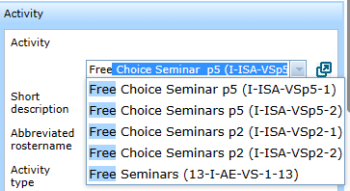
- In the figure the user is looking for an activity that starts with 'Free'.
- A dropdown list of activities appears for you to choose.
- Select the required activity from the list.
- Press Enter.
- Your selected activity appears at the top of the Activity field.
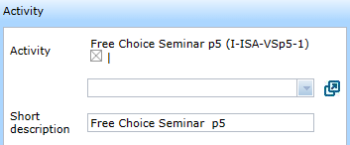
- In de figuur the user selected 'Free Choice Seminar p5'.
- Tip: Click the checkbox containing the X to remove the activity you just selected.
- Your selected activity appears at the top of the Activity field.


Select from a list
- Click the icon on the right-hand side of Activity.
- A window pops up with the list of activities sorted alpha-numerically.
- A window pops up with the list of activities sorted alpha-numerically.
- Click your requested activity on the left-hand side.
- The selected activity is added above.
- Click the X at the top-right side of the activity-list to close it.
- The selected activity is added above.

Tip: The activity-list only contains the activities that are also present in your Expand Activity selection.
If your required activity is not on the activity-list then a your user-group configuration needs to modified.
Standard activity setting
You can assign a standard activity.
This activity appears automatically in the Activity field when you open a new bookingform.
- Tick the box on the right-hand side of the activity selection pop-up.
- In the figure 'Free Choice Seminar p5' has been assigned as the standard activity.

Tip: To unassign an assigned activity click 'Remove default choice' at the bottom of the list of activities.
Automatic input Activity field
Whether you must select an activity or not depends on a configuration setting determined by the administrator.
However, it still remains possible to select an activity even when not compulsory.
If you don't select an activity the system chooses a date-time code (in the format yymmdd-hhmmss).
The figure shows the system generated activity 20230503-171543 (generated on 03-05-2023 at 17:15 and 43 seconds).

Tip: The automatic setting is useful when the 'Short description' field is sufficient to identify the activity.
'Short description' field
This field automatically gets the same name as the activity you selected e.g. 'Free Choice Seminar p5' .
You can modify the value in order and give a more appropriate or detailed description e.g. 'world economics - session 2'.
The field is not compulsory.

Warning: If you empty the Activity field (e.g. because you need to select a different one) then this might lead to the Short description being deleted as well.
Whether the Short description gets deleted or not depends on Booking form settings.
'Booking name abbreviation' field
You can add a short abbreviation of the activity name, e.g. "world econ. ses. 2".
This might help when too long names might not be completely readable e.g. when printing out a timetable in pdf format.
This field is not compulsory.

'Activity type' field
You can add an additional typing of the activity, e.g.: seminar.
This field is not compulsory.

Activity fields read only
The activity fields might be read-only for a particular group of users.
This depends on the User group settings.
In the figure you see that the input button on the right-hand side of the Activity field is missing.

Tip: This can be useful when planners are only supposed to modify other fields of the booking, the rooms for example.
Component of WebPlanboard
© 2012-2023 Bitbybit Information Systems All rights reserved. No part of this documentation shall be reproduced, stored in a retrieval system, or transmitted by any means, electronic, mechanical, photocopying, recording, or otherwise, without written permission from Bitbybit Information Systems. Bitbybit Information Systems, Perspective-DB and IRIS-Planning are registered trademarks of Bitbybit Information Systems.
