WebPlanboard User Manual
Previous
Activity selection
The Activity frame contains fields for you to enter and afterwards view information about activities.

Activity field
 Warning: This field is normally obligatory in which case you must select an activity from the existing activity list.
 Tip: There might also be an automatic input option. Automatische invoer optie in which case the activity is automatically determined by the user group configuration of the user.
Warning: The administrator can limit the number of activities that you can book simultaneously.
If you enter more than the limit when booking, modifying or copying a booking then the system will not process the booking.
You can select activities in 2 ways:
Type directly in the Activity field
- Type the beginletter(s) of the activity.
- A dropdown list of activities appears for you to choose.
- In the figure the user is looking for an activity that starts with 'Free'.
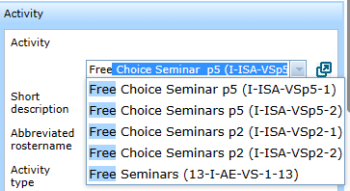
- A dropdown list of activities appears for you to choose.
- Select the required activity from the list.
- Press Enter.
- Your selected activity appears at the top of the Activity field.
- In de figuur the user selected 'Free Choice Seminar p5'.
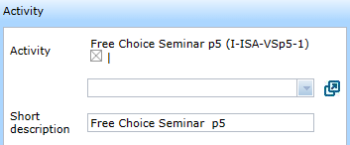
- Tip: Click the checkbox containing the X to remove the activity you just selected.
- Your selected activity appears at the top of the Activity field.


Select from a list
- Click the icon on the right-hand side of Activity.
- A window pops up with the list of activities sorted alpha-numerically.
- A window pops up with the list of activities sorted alpha-numerically.
- Click your requested activity on the left-hand side.
- The selected activity is added above.
- Click the X at the top-right side of the activity-list to close it.
- The selected activity is added above.

Tip: The activity-list only contains the activities that are also present in your Expand Activity selection.
If your required activity is not on the activity-list then a your user-group configuration needs to modified.
Standard activity setting
You can assign a standard activity.
This activity appears automatically in the Activity field when you open a new bookingform.
Tick the box on the right-hand side of the activity selection pop-up.
In the figure 'Free Choice Seminar p5' has been assigned as the standard activity.

Tip: To unassign an assigned activity click 'Remove default choice' at the bottom of the list of activities.
Automatic input Activity field
Het kan zijn dat het niet verplicht is om een Activiteit-veld in te voeren.
Dit hangt van de Boekingsformulier-instellingen af.
Het is wel mogelijk om een bestaande Activiteit te selecteren.
In dit geval zal het systeem een datum-tijd code genereren (in het formaat yymmdd-hhmmss).
In de figuur zie u dat de Activiteit is 20151013-120243 geworden (gemaakt dus op 13-10-2015 om 12:02 en 43 seconden).

Tip: Deze instelling kan handig zijn wanneer het 'Korte omschrijving'-veld meestal voldoende is om activiteiten in het rooster aan te duiden.
'Short description' field
Dit veld krijgt standaard dezelfde naam als de door u geselecteerde Activiteit, bijvoorbeeld Overleg.
U kunt het veld aanpassen om hiermee de boeking nauwkeuriger beschrijven, bijvoorbeeld "Lot van de ring".
Dit is een vrij tekstveld en niet verplicht.

Let op: Het kan zijn dat de 'Korte omschrijving' wordt gewist zodra alle activiteiten zijn verwijderd.
Dit hangt van de Boekingsformulier instellingen af.
'Booking name abbreviation' field
Hiermee kunt u een extra korte beschrijving aan de boeking geven, bijvoorbeeld "Lot ring".
Dit kan helpen om de informatie in een roosteroverzicht beter te kunnen zien of als men het rooster wil uitprinten.
Dit is een vrij tekstveld en niet verplicht.

'Activity type' field
Hiermee kunt u een extra typering van de activiteit geven, bijvoorbeeld: INT (internationaal), om aan te duiden dat er buitenlandse gasten aan het overleg gaan deelnemen.
Dit is een vrij tekstveld en niet verplicht.

Activity fields read only
Het kan zijn dat de Activiteit-velden voor een bepaalde gebruikersgroep alleen leesbaar zijn.
Dit hangt van de Gebruikersgroep opties af.
In de figuur zie u dat er geen invoerlijst-knop aan de rechterkant van het Activiteit-veld is.

Tip: Dit kan handig zijn wanneer planners andere velden van bestaande boekingen mogen wijzigen.
Component of WebPlanboard
© 2012-2023 Bitbybit Information Systems All rights reserved. No part of this documentation shall be reproduced, stored in a retrieval system, or transmitted by any means, electronic, mechanical, photocopying, recording, or otherwise, without written permission from Bitbybit Information Systems. Bitbybit Information Systems, Perspective-DB and IRIS-Planning are registered trademarks of Bitbybit Information Systems.
