Geen bewerkingssamenvatting |
|||
| (12 tussenliggende versies door dezelfde gebruiker niet weergegeven) | |||
| Regel 1: | Regel 1: | ||
[[Category: | [[Category:Timetable resource selection]] | ||
[[{{NAMESPACE}}:WebView Manual| | [[{{NAMESPACE}}:WebView Manual|WebView User Manual]]<br> | ||
[[{{NAMESPACE}}:WebView_resource_selection|Timetable resource selection]]<br> | |||
[[{{NAMESPACE}}:WebView activity selection|Previous]] | [[{{NAMESPACE}}:WebView activity selection|Previous]] | ||
==Room selection== | ==Room selection== | ||
To view a timetable you must let the system know which rooms you wish to see in this timetable.<br> | To view a timetable you must let the system know which rooms you wish to see in this timetable.<br> | ||
First select one or several rooms of choice and then click one of the timetable display buttons, for example | First select one or several rooms of choice and then click one of the timetable display buttons, for example: 'Calendar Timetable' which then renders and opens the timetable.<br> | ||
Here follows an explanation on the various ways of selecting rooms. | Here follows an explanation on the various ways of selecting rooms. | ||
{{Lightbulb}} You can combine different kinds of items in the same timetable.<br>For example | {{Lightbulb}} You can combine different kinds of items in the same timetable.<br>For example: you want the timetable of a room and a provider: first you select the room, then you click the Provider tab, select the provider and finally click the display button to open the timetable. | ||
===Steps=== | ===Steps=== | ||
#Click the tab | #Click the tab 'My selection' and then the Room tab. | ||
#:A list of rooms appears below. | #:A list of rooms appears below. | ||
#:<p></p> | #:<p></p> | ||
| Regel 34: | Regel 35: | ||
===Remove Rooms from the selection=== | ===Remove Rooms from the selection=== | ||
Click this button to remove a room from the selection.<br> | Click this button to remove a room from the selection.<br> | ||
First tick the boxes of rooms you wish to remove and then click the | First tick the boxes of rooms you wish to remove and then click the 'Remove selected Room from list' button.<br> | ||
For example in the figure the user wishes to remove 202 and 310 from the selection. | For example: in the figure the user wishes to remove 202 and 310 from the selection. | ||
:[[Bestand:100enWebViewRoomSelection5.png|450px|none]] | :[[Bestand:100enWebViewRoomSelection5.png|450px|none]] | ||
| Regel 43: | Regel 44: | ||
:[[Bestand:100enWebViewRoomSelection6.png|550px|none]] | :[[Bestand:100enWebViewRoomSelection6.png|550px|none]] | ||
{{Lightbulb}} If you removed a room by mistake you can recover it by using the | {{Lightbulb}} If you removed a room by mistake you can recover it by using the 'Expand selection: Room' button. | ||
===Quickly select multiple rooms=== | ===Quickly select multiple rooms=== | ||
| Regel 53: | Regel 54: | ||
===Expand selection=== | ===Expand selection=== | ||
Click the | Click the 'Expand selection: Room' button to get to 'Expand selection'.<br> | ||
Click the | Click the Room tab where you can add rooms to the selection.<br> | ||
See explanation in [[{{NAMESPACE}}: | See explanation in [[{{NAMESPACE}}:WebView expand room selection|Expand Room selection]]. | ||
:[[Bestand:100enWebViewRoomSelection7.png|350px|none]] | :[[Bestand:100enWebViewRoomSelection7.png|350px|none]] | ||
| Regel 63: | Regel 64: | ||
Labels such as Rooms and Room types function as sorting buttons that enable you to sort in alphanumeric order.<br> | Labels such as Rooms and Room types function as sorting buttons that enable you to sort in alphanumeric order.<br> | ||
In the figure the user has clicked the Room type label and the rooms are in the alphanumeric order, from a to z.<br> | In the figure the user has clicked the Room type label and the rooms are in the alphanumeric order, from a to z.<br> | ||
The small triangle is facing | The small triangle is facing up. | ||
:[[Bestand:100enWebViewRoomSelection8.png|950px|none]] | :[[Bestand:100enWebViewRoomSelection8.png|950px|none]] | ||
{{Lightbulb}} Click the Rooms label once more in order to sort the rooms in reverse alphanumeric order, from z to a.<br> | {{Lightbulb}} Click the Rooms label once more in order to sort the rooms in reverse alphanumeric order, from z to a.<br> | ||
The small triangle is facing | The small triangle is facing down. | ||
:[[Bestand:100enWebViewRoomSelection9.png|250px|none]] | :[[Bestand:100enWebViewRoomSelection9.png|250px|none]] | ||
===Filter buttons=== | ===Filter buttons=== | ||
If the list of rooms is very long even the sorting buttons might not help you to find | If the list of rooms is very long even the sorting buttons might not help you to find particular rooms.<br> | ||
Click the filter button at the top left or the second row from the top of a specific column in order to open a form in which you can | Click the filter button at the top left or the second row from the top of a specific column (see green arrows in figure) in order to open a form in which you can filter explicitly.<br> | ||
In the figure the user has clicked the filter button of the Room type column and has entered a | In the figure the user has clicked the filter button of the Room type column and has entered a filter request in the form: The column 'Room types', with search condition contains and value study, in order to find all rooms containing study in the room type. | ||
<p></p> | <p></p> | ||
| Regel 81: | Regel 82: | ||
<p></p> | <p></p> | ||
Click the | Click the Filter button in the form for the system to execute the filter request.<br> | ||
In the figure the system answers: '5 of 34 items are shown' and now only displays | In the figure the system answers: '5 of 34 items are shown' and now only displays rooms with 'Study Room' Room types. | ||
<p></p> | <p></p> | ||
| Regel 88: | Regel 89: | ||
<p></p> | <p></p> | ||
Click the | Click the Clear button in the form to begin a new search.<br> | ||
Click the | Click the Cancel button in the form to undo a search.<br> | ||
{{Lightbulb}} Besides filter condition contains you can also filter with: is, 'starts with', 'ends with', 'does not contain', 'is not', 'does not start with', 'does not end with' and 'is empty'. | |||
{{Lightbulb}} If the form is no longer open you can click the 'Clear filter' at the top left to undo the filter request. | |||
{{Lightbulb}} | {{Lightbulb}} If you use the filter icon at the top left then it will filter for matches in all columns. | ||
{{ | {{warning_en}} Be sure to click the 'Clear filter' button when no longer needed otherwise your timetable might be missing items. | ||
[[{{NAMESPACE}}:WebView provider selection|Next]] | [[{{NAMESPACE}}:WebView provider selection|Next]]<br> | ||
[[{{NAMESPACE}}:WebView_expand_resource_selection|Timetable Expand resource selection]] | |||
''Component of WebView'' | ''Component of WebView'' | ||
Huidige versie van 28 nov 2022 16:09
WebView User Manual
Timetable resource selection
Previous
Room selection
To view a timetable you must let the system know which rooms you wish to see in this timetable.
First select one or several rooms of choice and then click one of the timetable display buttons, for example: 'Calendar Timetable' which then renders and opens the timetable.
Here follows an explanation on the various ways of selecting rooms.
 Tip: You can combine different kinds of items in the same timetable.
For example: you want the timetable of a room and a provider: first you select the room, then you click the Provider tab, select the provider and finally click the display button to open the timetable.
Steps
- Click the tab 'My selection' and then the Room tab.
- A list of rooms appears below.
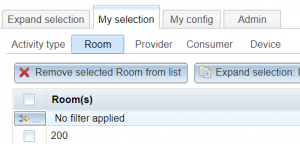
- Tick the boxes to select the rooms you want to see in the timetable.


Select all
Tick the box at the top left to select all the activities at once.

Deselect all
Untick the box at the top left to deslect all the rooms at once.

Remove Rooms from the selection
Click this button to remove a room from the selection.
First tick the boxes of rooms you wish to remove and then click the 'Remove selected Room from list' button.
For example: in the figure the user wishes to remove 202 and 310 from the selection.

In the figure the rooms 202 and 310 are no longer visible in the selection.

Tip: If you removed a room by mistake you can recover it by using the 'Expand selection: Room' button.
Quickly select multiple rooms
- Place the mouse on the box of the first room you wish to tick.
- Keep the left mouse button pressed.
- Drag the mouse down to the box of the last room you wish to tick.
- You see the boxes of rooms you selected are ticked.
- When you release the mouse button the boxes remain ticked.
Expand selection
Click the 'Expand selection: Room' button to get to 'Expand selection'.
Click the Room tab where you can add rooms to the selection.
See explanation in Expand Room selection.

Sorting buttons
If the Rooms list is very long it becomes more difficult to find a particular room.
Labels such as Rooms and Room types function as sorting buttons that enable you to sort in alphanumeric order.
In the figure the user has clicked the Room type label and the rooms are in the alphanumeric order, from a to z.
The small triangle is facing up.

Tip: Click the Rooms label once more in order to sort the rooms in reverse alphanumeric order, from z to a.
The small triangle is facing down.

Filter buttons
If the list of rooms is very long even the sorting buttons might not help you to find particular rooms.
Click the filter button at the top left or the second row from the top of a specific column (see green arrows in figure) in order to open a form in which you can filter explicitly.
In the figure the user has clicked the filter button of the Room type column and has entered a filter request in the form: The column 'Room types', with search condition contains and value study, in order to find all rooms containing study in the room type.

Click the Filter button in the form for the system to execute the filter request.
In the figure the system answers: '5 of 34 items are shown' and now only displays rooms with 'Study Room' Room types.

Click the Clear button in the form to begin a new search.
Click the Cancel button in the form to undo a search.
Tip: Besides filter condition contains you can also filter with: is, 'starts with', 'ends with', 'does not contain', 'is not', 'does not start with', 'does not end with' and 'is empty'.
Tip: If the form is no longer open you can click the 'Clear filter' at the top left to undo the filter request.
Tip: If you use the filter icon at the top left then it will filter for matches in all columns.
 Warning: Be sure to click the 'Clear filter' button when no longer needed otherwise your timetable might be missing items.
Next
Timetable Expand resource selection
Component of WebView
